08. Create a Firebase Project for Android
Create a Firebase Project for Android
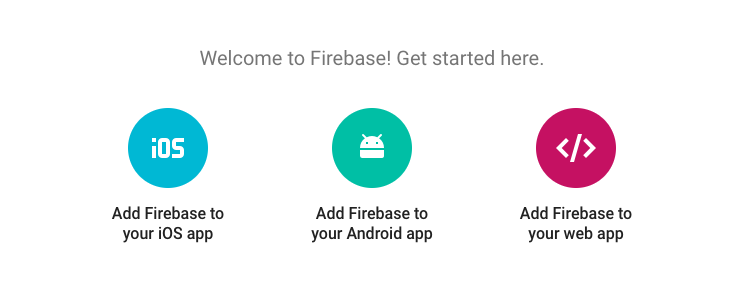
From the FriendlyChat project page in the Firebase Console, select “Add Firebase to your Android App”. This opens a dialog window that asks for your app’s Package name and the Debug signing certificate SHA-1. It also asks for an optional App Nickname, which you can keep blank.
Finding the app's package name
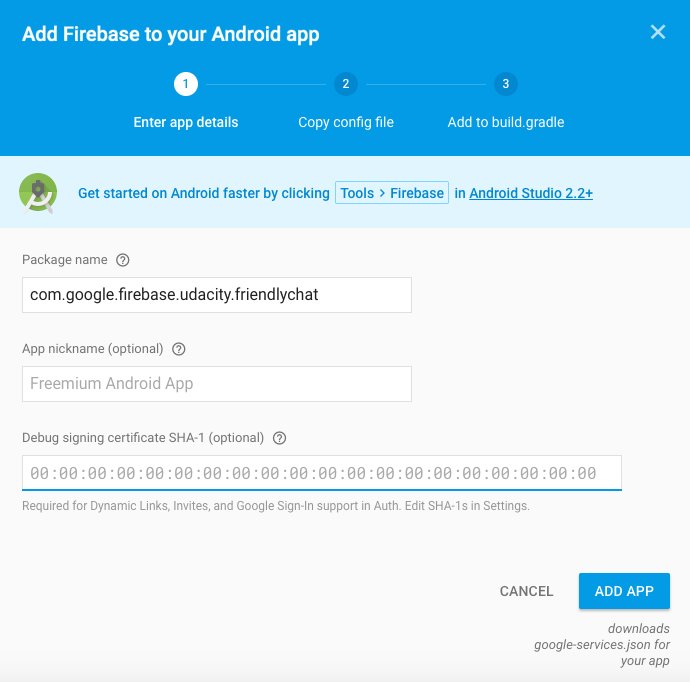
For the package name, paste in com.google.firebase.udacity.friendlychat so it matches the package name from the FriendlyChat project downloaded earlier. You can find this in your app's build.gradle file:

Getting the Debug Certificate
You’ll need to add the debug signing certificate too because you’ll implement Google Sign-In for authentication in FriendlyChat. The SHA-1 is a type of hash representation for the debug keystore, which you can get with the keytool command line tool. Which is a long way of saying, the debug keystore is a bunch of letters and numbers, which you should keep secret, that identifies your computer.
On Windows, open the Command Prompt program. You can do this by going to the Start menu
keytool -exportcert -list -v \
-alias androiddebugkey -keystore %USERPROFILE%\.android\debug.keystore
On Mac/Linux, open the Terminal and paste
keytool -exportcert -list -v \
-alias androiddebugkey -keystore ~/.android/debug.keystore
When prompted to input a password, type android and then press Enter. Don’t worry if you don’t see any characters appear on the screen when typing the password, as your command line interface is hiding them on purpose.
After you paste the command and press Enter, you’ll see some text output like the following:
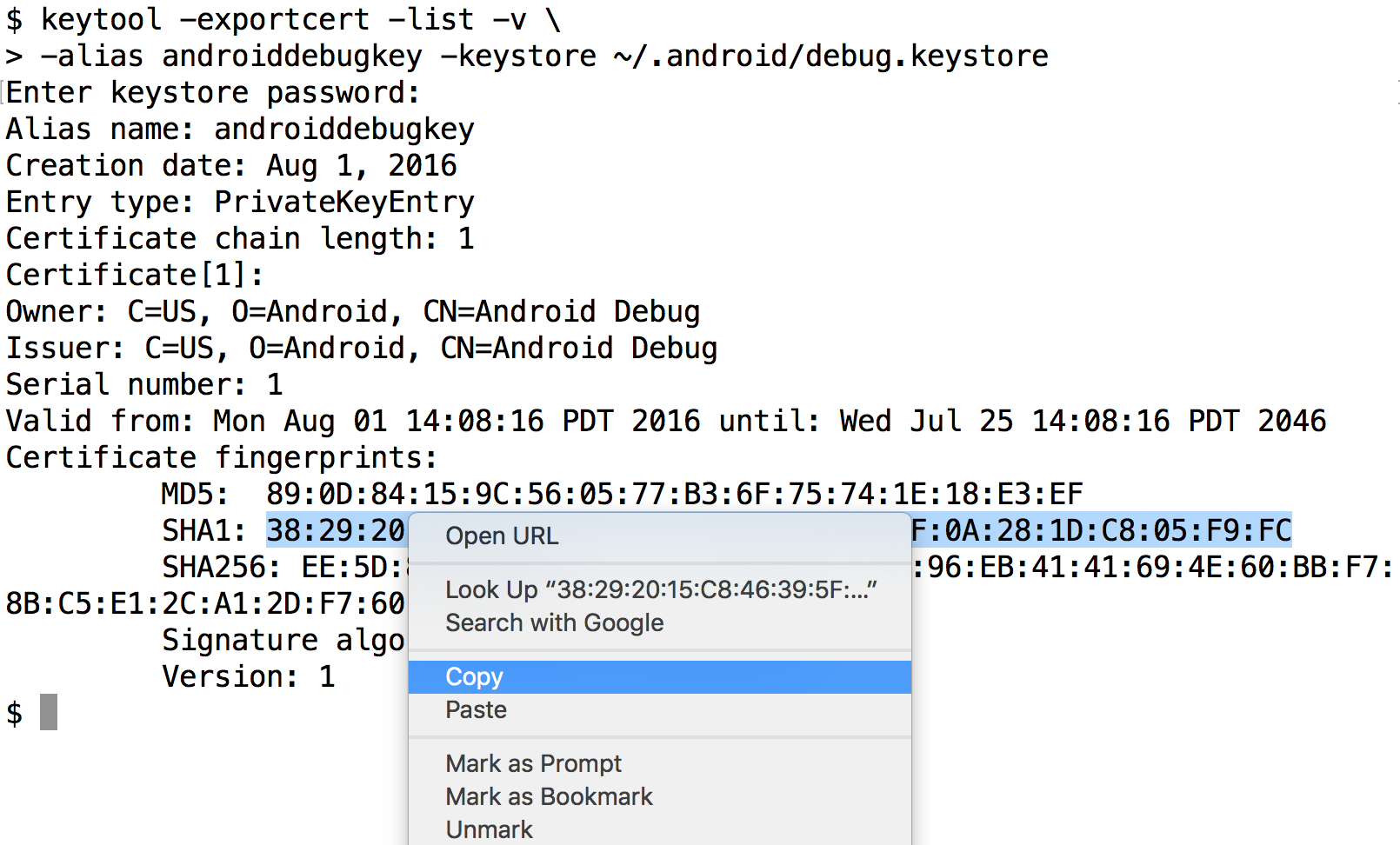
Select the string of numbers and colons after the line that’s labeled “SHA-1:” and copy it. Then paste it in the dialog back in the Firebase Console.
google-services.json
Once you click “Add App”, a google-services.json file should download automatically. The google-services.json file connects your client-side app with your specific Firebase project that will handle the server-side components of your app.
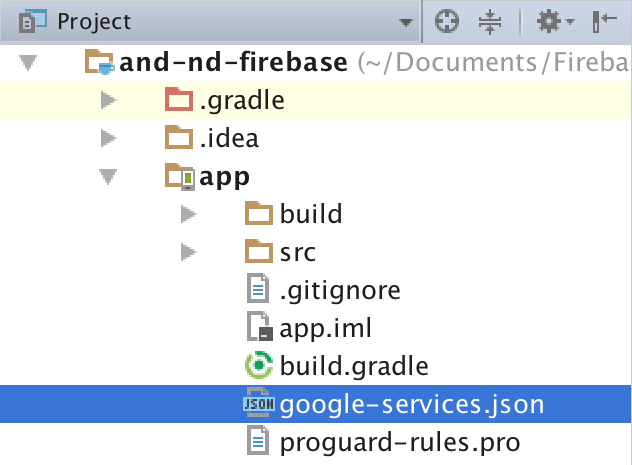
Once the download is complete, move the google-services.json file to the app directory of the FriendlyChat project. In Android Studio, you can select the “Project” view in the top-left corner of the Project navigation view, and then open the app directory. You can then drag the google-services.json file into the Android Studio project. You should end up with a project file tree like the following screenshot: